
12 KiB
Installation Guide
This guide covers installing the DICOM MCP server for use with Claude Desktop, Claude Code, or any other MCP-compatible client.
Table of Contents
- Supported Clients
- 1. Installation
- 2. Client Configuration
- 3. PII Filtering
- 4. Environment Variables
- 5. Verifying the Installation
- 6. Troubleshooting
Supported Clients
This MCP server communicates via stdio — it runs as a local subprocess on your machine. This means it only works with Claude clients that can spawn local processes.
| Client | Supported? | Config file | Notes |
|---|---|---|---|
| Claude Desktop (native app) | Yes | claude_desktop_config.json |
GUI-based, single config file per platform |
| Claude Code (terminal) | Yes | .mcp.json or ~/.claude.json |
CLI-based, multiple scope levels |
| Claude Code (VS Code / IDE) | Yes | Same as above | Same CLI, same config files — the IDE terminal makes no difference |
| claude.ai (web browser) | No | N/A | Cannot spawn local processes; would require an HTTP/SSE remote server wrapper |
This server implements the open Model Context Protocol standard, so it also works with other MCP-compatible clients such as ChatGPT, Cursor, and Windsurf. Configuration will vary by client — refer to your client's MCP documentation. The instructions below cover Claude Desktop and Claude Code specifically.
If you're unsure which client you have: Claude Desktop is the native app with a chat window. Claude Code is the claude command you run in a terminal (standalone, VS Code, or any other IDE). claude.ai is the website at claude.ai.
1. Installation
Choose the installation method that matches your environment.
1a. Standalone Package (Non-Developers)
No Python installation required. Ideal for radiographers, QA analysts, and other team members who don't have a development environment. Everything is self-contained — Python, pydicom, numpy, and all dependencies are bundled.
macOS
-
Download the standalone package for your Mac:
- Apple Silicon (M1/M2/M3/M4):
dicom_mcp_standalone_arm64.tar.gz - Intel Mac:
dicom_mcp_standalone_x86_64.tar.gz
- Apple Silicon (M1/M2/M3/M4):
-
Extract and install:
tar -xzf dicom_mcp_standalone_arm64.tar.gz
cd dicom_mcp_standalone_arm64
./install_to_claude.sh
- Restart Claude Desktop.
The installer configures Claude Desktop automatically.
Linux
-
Download
dicom_mcp_standalone_linux_x86_64.tar.gz(oraarch64for ARM). -
Extract and install:
tar -xzf dicom_mcp_standalone_linux_x86_64.tar.gz
cd dicom_mcp_standalone_linux_x86_64
./install_to_claude.sh
- Restart your MCP client.
1b. Developer Installation (Poetry)
For developers who want to modify the code, run tests, or extend the server.
Prerequisites
- Python 3.12 or higher
- Poetry (Python package manager)
Quick Setup
# Clone the repository
git clone <repository-url>
cd dicom_mcp

# Run the automated installer (macOS, configures Claude Desktop)
./install.sh
Manual Setup
- Install dependencies:
poetry install --with dev
- Verify the installation:
poetry run pytest -v --tb=short
You should see all 138 tests passing.
- Start the server (to test it manually):
poetry run python -m dicom_mcp
After installation, proceed to Client Configuration below.
2. Client Configuration
Configuration is different for Claude Desktop and Claude Code. If you used the standalone installer (install_to_claude.sh), Claude Desktop is already configured — skip to Verifying the Installation.
2a. Claude Desktop
Claude Desktop reads its MCP server configuration from a single JSON file. The location depends on your OS:
| OS | Config file path |
|---|---|
| macOS | ~/Library/Application Support/Claude/claude_desktop_config.json |
| Linux | ~/.config/Claude/claude_desktop_config.json |
| Windows | %APPDATA%\Claude\claude_desktop_config.json |
Using the GUI
-
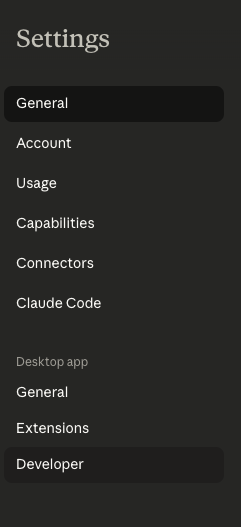
Open Claude Desktop and go to Settings (gear icon).
-
Navigate to the Developer section.
-
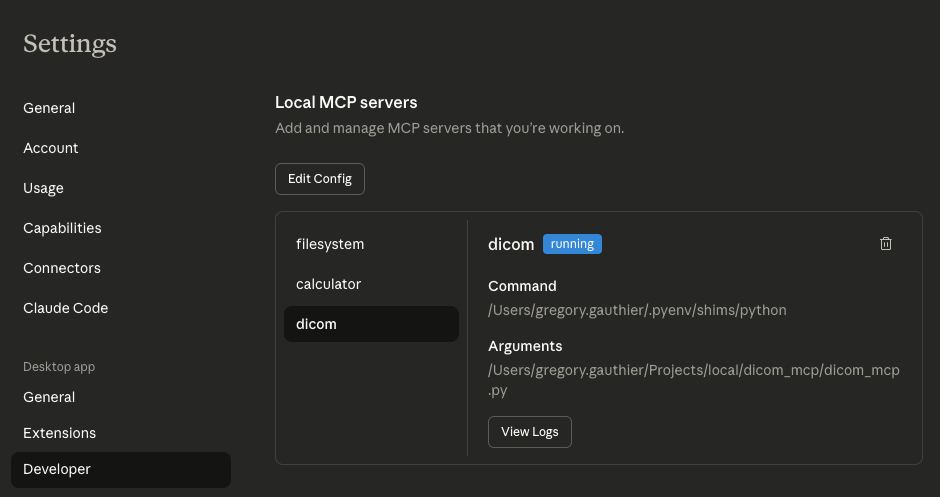
Click Edit Config or Add MCP Server.
-
Add the server configuration using one of the JSON examples below.
Poetry (Recommended for Developers)
{
  "mcpServers": {
    "dicom_mcp": {
      "command": "poetry",
      "args": ["run", "python", "-m", "dicom_mcp"],
      "cwd": "/absolute/path/to/dicom_mcp"
    }
  }
}
Replace /absolute/path/to/dicom_mcp with the actual directory where the project lives.
Virtualenv Python Directly
If Claude Desktop has trouble finding Poetry, you can point it at the virtualenv Python directly. First, get the path:
poetry env info --path
Then configure:
{
  "mcpServers": {
    "dicom_mcp": {
      "command": "/path/to/poetry/virtualenv/bin/python",
      "args": ["-m", "dicom_mcp"],
      "cwd": "/absolute/path/to/dicom_mcp"
    }
  }
}
After adding the configuration, restart Claude Desktop to load the server.
2b. Claude Code
Claude Code supports multiple configuration scopes for MCP servers, each stored in a dedicated file (separate from Claude Code's settings files). Choose the scope that matches your use case.
Scope Overview
| Scope | Config file | Shared via git? | Use case |
|---|---|---|---|
| Project | .mcp.json (project root) |
Yes | Team-shared — everyone on the project gets the server |
| User | ~/.claude.json |
No | Personal — available in all your projects |
| Local | ~/.claude.json (project-specific section) |
No | Personal — available only in the current project |
| Managed | System directory (see below) | Enterprise IT | Organisation-wide enforcement |
Precedence (highest to lowest): Managed > Local > Project > User. If the same MCP server name appears at multiple scopes, the higher-precedence scope wins.
Project Scope (Team-Shared)
Create .mcp.json in your project root and commit it to version control. All collaborators will get the server automatically:
{
  "mcpServers": {
    "dicom_mcp": {
      "command": "poetry",
      "args": ["run", "python", "-m", "dicom_mcp"],
      "cwd": "/absolute/path/to/dicom_mcp"
    }
  }
}
Replace /absolute/path/to/dicom_mcp with the actual directory where the DICOM MCP project lives.
Note: Project-scoped servers require user approval on first use. Users can reset approval with claude mcp reset-project-choices.
User Scope (Personal, All Projects)
Add to ~/.claude.json to make the server available in every Claude Code session:
{
  "mcpServers": {
    "dicom_mcp": {
      "command": "poetry",
      "args": ["run", "python", "-m", "dicom_mcp"],
      "cwd": "/absolute/path/to/dicom_mcp"
    }
  }
}
Local Scope (Personal, One Project)
The local scope is stored in ~/.claude.json but scoped to a specific project directory. The easiest way to add a local-scoped server is via the CLI:
claude mcp add dicom_mcp \
  --scope local \
  -- poetry run python -m dicom_mcp
Managed Scope (Enterprise)
For organisation-wide deployment, IT administrators can place a managed configuration in:
| OS | Path |
|---|---|
| macOS | /Library/Application Support/ClaudeCode/managed-mcp.json |
| Linux/WSL | /etc/claude-code/managed-mcp.json |
| Windows | C:\Program Files\ClaudeCode\managed-mcp.json |
Managed servers cannot be overridden by users and take the highest precedence.
Using the CLI
Claude Code provides a CLI for managing MCP servers without editing JSON files directly:
# Add a server (default: local scope)
claude mcp add dicom_mcp -- poetry run python -m dicom_mcp

# Add at a specific scope
claude mcp add dicom_mcp --scope user -- poetry run python -m dicom_mcp
claude mcp add dicom_mcp --scope project -- poetry run python -m dicom_mcp

# List all configured servers
claude mcp list

# Get details for a specific server
claude mcp get dicom_mcp

# Remove a server
claude mcp remove dicom_mcp
Virtualenv Python Fallback
If Claude Code has trouble finding Poetry, point directly at the virtualenv Python. First, get the path:
poetry env info --path
Then use the full Python path in your configuration (at any scope):
{
  "mcpServers": {
    "dicom_mcp": {
      "command": "/path/to/poetry/virtualenv/bin/python",
      "args": ["-m", "dicom_mcp"],
      "cwd": "/absolute/path/to/dicom_mcp"
    }
  }
}
After saving any configuration, restart Claude Code (or start a new session) for the changes to take effect. You can verify the server is loaded by running /mcp in the Claude Code interface.
3. PII Filtering
Patient-identifying tags can be redacted from all tool output by setting an environment variable. This works with any client and any configuration method.
Add an env block to your MCP server configuration:
{
  "mcpServers": {
    "dicom_mcp": {
      "command": "...",
      "args": ["..."],
      "env": {
        "DICOM_MCP_PII_FILTER": "true"
      }
    }
  }
}
When enabled, the following tags are replaced with [REDACTED] in all tool output:
- PatientName
- PatientID
- PatientBirthDate
- PatientSex
This affects dicom_get_metadata, dicom_compare_headers, dicom_summarize_directory, and dicom_query. All other tools do not expose patient data and are unaffected.
Standalone users: Edit the Claude Desktop config file that install_to_claude.sh created (see Claude Desktop config locations) and add the env block to the existing dicom_mcp entry. Keep the command value the installer wrote — you're only adding the env section.
To disable, unset the variable or set it to any value other than true, 1, or yes.
4. Environment Variables
| Variable | Default | Description |
|---|---|---|
DICOM_MCP_PII_FILTER |
false |
Set to true, 1, or yes to redact patient tags in tool output |
DICOM_MCP_MAX_FILES |
1000 |
Maximum number of DICOM files to scan per directory operation |
5. Verifying the Installation
Once configured, restart your client and verify the server is working:
-
Claude Desktop: Ask Claude "What MCP tools do you have available?" — you should see 17 DICOM tools listed.
-
Claude Code: The tools will appear in the tool list. You can also test directly:
List your available DICOM MCP tools -
MCP Inspector (for debugging):
npx @modelcontextprotocol/inspector poetry run python -m dicom_mcp
6. Troubleshooting
Server not appearing after configuration
- Double-check that the
cwdpath is correct and contains thedicom_mcp/package directory. - Ensure Poetry is installed and on the PATH, or use the virtualenv Python directly.
- Restart the client after any configuration change.
ModuleNotFoundError
The configured Python environment is missing dependencies. Either:
- Run
poetry installin the project directory, or - Switch to the virtualenv Python configuration (see above).
Permission denied on standalone launcher
chmod +x run_dicom_mcp.sh install_to_claude.sh
Poetry not found by Claude Desktop
Claude Desktop may not inherit your shell's PATH. Use the virtualenv Python directly instead of the Poetry command (see configuration examples above).